If you are facing challenges sending files between mobile phones, computers, and other devices, then we have a great solution for you. LocalSend APK is a file-transferring application that can assit you to transfer files between two devices in a short time.
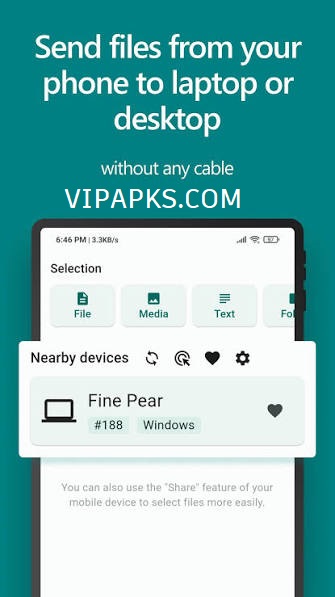
This application designed to transfer files between nearby devices over a local network. You can use this application on several devices including Android, iOS, Windows, macOS, and Linux, allowing users to move photos, videos, documents, and other files without depending on cloud storage.
What Is LocalSend APK?
LocalSend APK itself is a free and open-source file-transfer application that allows to send files between two devices within a short time. This app allows to send different types of files including documents, videos, images, or other files. Unlike traditional cloud-based sharing services, LocalSend is designed for local communication.
Features of LocalSend APK
File Sharing in Cross-Platform
The app supports different devices to share files. Below are the following devices that you can share between.
- Android
- iPhone and iPad
- Windows
- macOS
- Linux
- Fire OS
This makes LocalSend APK useful in mixed-device households and workplaces. You are not restricted to sharing files between devices made by the same company.
No Account Required
LocalSend is designed to work without creating a traditional online account.
Internet Is Not Required
LocalSend APK uses the local network rather than relying on cloud storage. You don’t need internet connection to share your files.
Secure Transfers
This app uses encrypted communication for transfers. It has end-to-end encryption process that your data never can be access someone.
No Cloud Storage
LocalSend is different from services that upload a file to a remote server before another device downloads it.
With LocalSend, the purpose is direct local transfer. This can save time and avoid using cloud storage space.
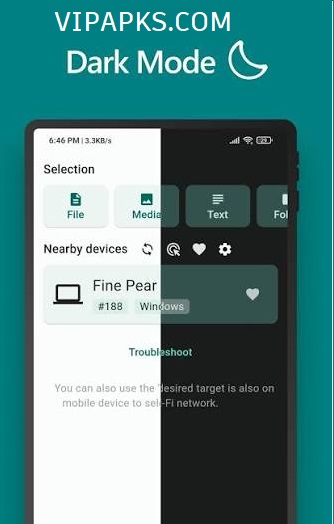
How Does LocalSend Work?
First, install LocalSend on both devices. Then open the application on each device.
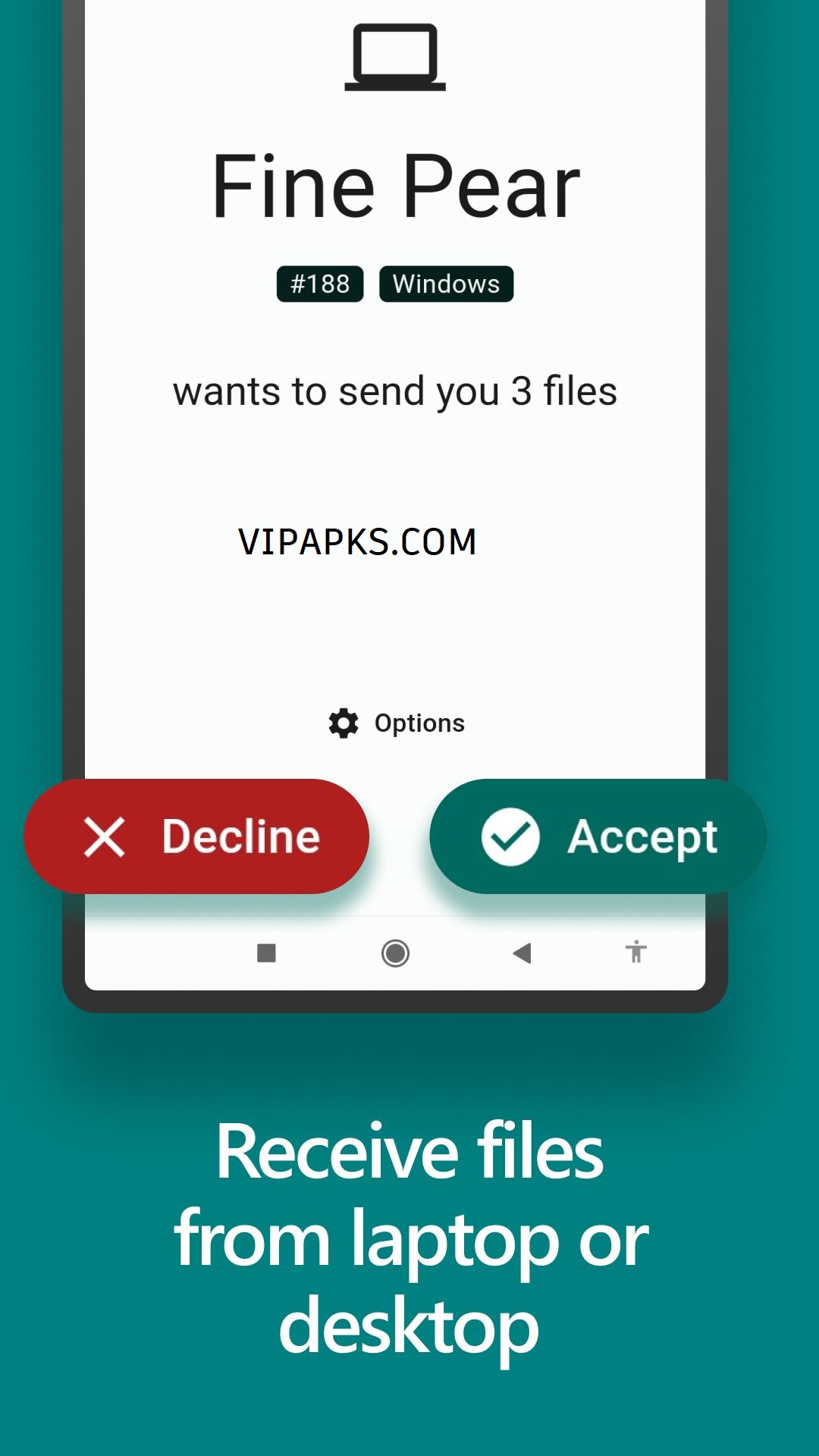
When both devices are connected to a suitable local network, LocalSend can discover nearby compatible devices. Select the receiving device, choose the files you want to transfer, and accept the transfer on the other device.
For instance:
Android phone → Windows laptop
1. Install LocalSend on both devices.
2. Connect both devices to the same local network.
3. Open LocalSend.
4. Select the Windows computer.
5. Choose photographs or documents.
6. Accept the incoming transfer on the computer.
7. Wait for the transfer to finish.
How to Install LocalSend APK on Android
- Download the app from the download link above
- Go to your phone setting and enable the unknown source
- Double tap on the downloaded file and wait a moment
- It will automatically install on your phone
What Can You Send With LocalSend?
LocalSend APK is designed for transferring many different types of content.
Common examples include:
- Photos
- Videos
- Documents
- PDFs
- ZIP files
- Music files
- Text
- Work documents
- School assignments
- Application files
- Other supported file
LocalSend for Phone-to-PC Transfers
One of the most useful applications is moving files between Android and Windows. Suppose you recorded a 2 GB video on your phone. Sending it through a messaging app may compress the video or require an upload. Cloud storage adds another step.
With LocalSend, you can transfer the original file over your local network.
This is useful for:
- Content creators
- Students
- Office workers
- Photographers
- Families
- Small businesses
- Anyone regularly moving large files
LocalSend vs Cloud Storage
Feature| LocalSend| Typical Cloud Storage
Internet needed for transfer| No| Usually yes
Account| Not required| Usually required
Local transfer| Yes| No
Cloud storage| No| Yes
Cross-platform| Yes| Usually
Large local transfers| Suitable| Depends on service
Data path| Local network| Internet/cloud
Open source| Yes| Usually no
LocalSend is therefore not really a replacement for cloud backup. The two tools solve different problems. Use cloud storage when you want files available from different locations. Use LocalSend when your devices are nearby and you simply want to move data between them.
Advantages of LocalSend APK
Fast Local Transfers
Transfer speed can benefit from the speed of your local Wi-Fi network.
Privacy-Focused Design
Because files are transferred locally instead of being uploaded to a third-party cloud service, LocalSend can be attractive to privacy-conscious users.
No Subscription
The project is free and open source, so you do not need to pay a monthly subscription simply to transfer files locally.
Multiple Platforms
Its support for Android, iOS, Windows, macOS, and Linux. You can use this app on the any devices of them.
Advertisements Free
The official LocalSend website currently highlights 0 ads or trackers as one of the project’s characteristics.
Disadvantages and Limitations
Devices Must Be Able to Communicate If devices cannot see one another on the network, transfers will not start.
Router settings can interfere with device discovery. The project’s troubleshooting documentation specifically mentions access-point isolation as one possible cause of devices not appearing.
It Is Not a Cloud Backup
If your phone is lost, LocalSend does not automatically preserve your files online.
Network Quality Matters
A weak or congested Wi-Fi connection can reduce transfer performance.
Manual APK Installation May Not Auto-Update
The project recommends app stores or package managers because the manually distributed application does not automatically update.
LocalSend Troubleshooting
If LocalSend cannot find another device, try these steps:
Check the Network
Make sure both devices can communicate through the same local network.
Check Router Isolation
Some routers have AP isolation or client isolation enabled. Such settings can prevent devices connected to the same Wi-Fi from communicating. LocalSend’s documentation identifies this as a possible cause of discovery problems.
Check Windows Network Settings
Windows may restrict communication when a network is classified as public. The project’s troubleshooting guidance recommends checking that the network is configured appropriately.
Check Permissions
On some platforms, LocalSend needs permission to access the local network or files. Make sure required permissions have not been blocked.
Try 5 GHz Wi-Fi
For compatible hardware, the project’s troubleshooting information suggests using 5 GHz when transfer speed is too slow.
Conclusion
LocalSend APK is a wonderful file transferring application that allows to transfer data between two devices. You can share the data including files, videos, images, documents, and other data in very short time. This is an easy and user-friendly application that everyone can use this app without any complexity.
Frequently Asked Questions
1.What is LocalSend APK?
LocalSend APK is the Android file transferring app that allows to transfer any kind of files between two devices in very few time.
2. Does LocalSend need the internet?
No. LocalSend is designed for local file transfers and does not require internet access for the transfer itself. The devices still need a functioning local connection through which they can communicate.
3. Is LocalSend available for Windows and iPhone?
Yes. LocalSend supports Android, iOS, Windows, macOS, Linux, and Fire OS.
4. Is LocalSend free?
Yes this app is free for download, and use.
5. Why can’t LocalSend find my other phone or computer?
The most common causes include devices not being able to communicate on the local network, router isolation, firewall restrictions, or blocked network permissions. The official troubleshooting guidance specifically mentions AP isolation and Windows network configuration as possible causes.